Most cloud cost advice still assumes your bill behaves predictably. Traffic goes up, costs go up. Traffic goes down, costs go down. You right-size a few VMs, delete some orphaned disks, and call it optimization.
AI workloads broke that assumption.
A single short prompt can trigger a chain of expensive operations behind the scenes. Requests per second no longer tells you much about what you are about to be charged. A misconfigured retry loop or an unoptimized inference pipeline can burn through a quarter’s budget in an afternoon, and you often will not see it until the invoice reconciles days later.
Google Cloud has shipped three significant changes to its cost management tooling over the past year that address this directly. None of them appear in the standard cost optimization checklist yet. All three are available now, and all three are worth acting on.
Here is what changed, and how to put each one to work.
Strategy 1: Set hard guardrails on AI spend with early anomalies and spend caps
Budget alerts have always had the same flaw. They tell you something went wrong after it went wrong, and then they wait for a human to react. If the spike happens on a Friday night, you find out Monday.
Google Cloud now offers two native features in the Billing console that close that gap: early anomalies on AI services, and spend caps on Google Cloud Budgets. Used together, they give you detection and enforcement instead of detection alone:
Early anomaly detection catches the spike before the invoice does
Early anomalies sit inside the Anomalies section of your Billing console and monitor daily service-level costs at the project level. Three things make it different from the standard anomaly detection you may already be using:
- It builds its own baseline. The system analyzes your historical project data to establish expected seasonal cost patterns. There are no thresholds to configure and no numbers to guess at.
- It works on early cost signals. Rather than waiting for billing data to fully reconcile, it watches cost signals as they emerge and flags movement before the charges are formally reported.
- It tells you what caused it. When a daily cost trend looks abnormal, the system generates a root cause analysis identifying the top three SKUs behind the increase. That turns a two-hour investigation into a two-minute one.
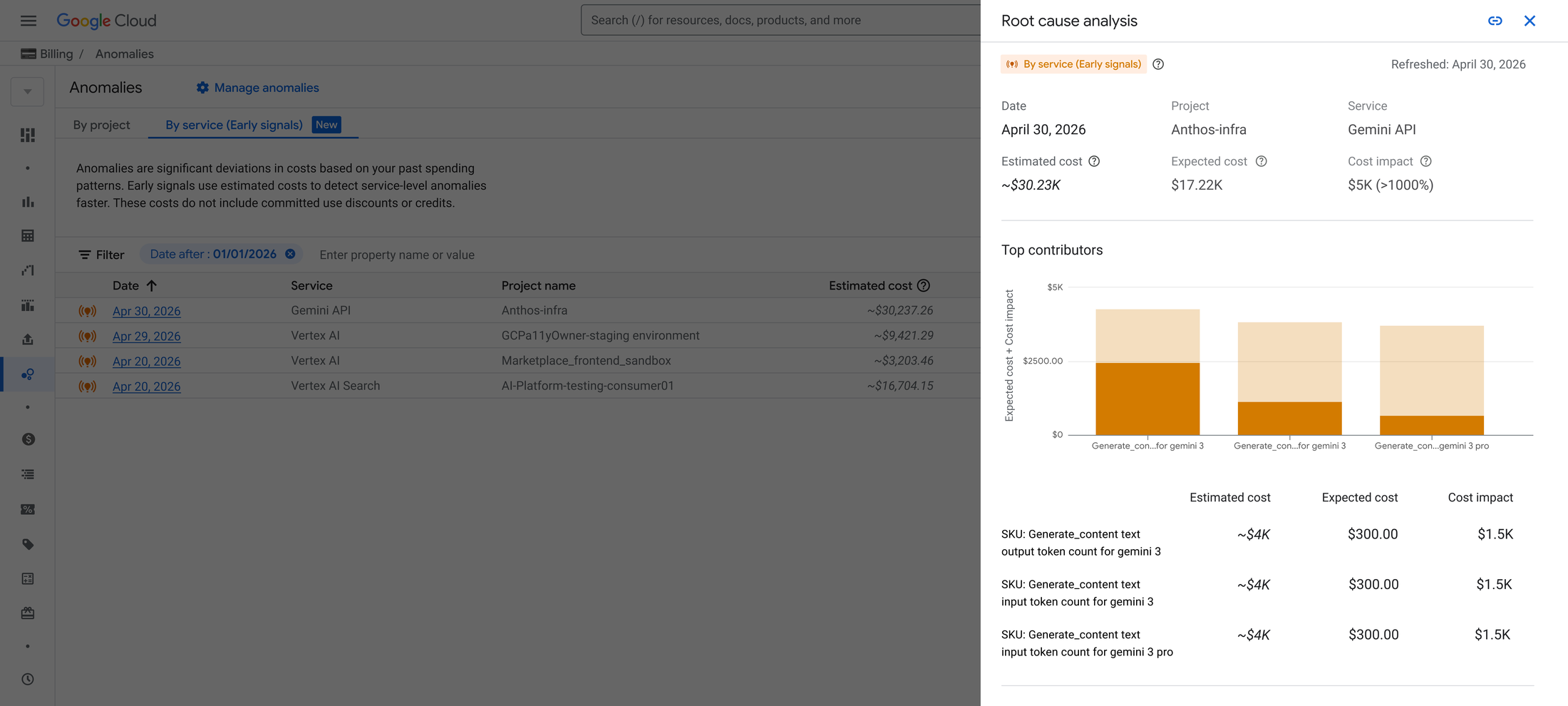
The practical value is triage. Once you can see which services swing most unpredictably, you know exactly which ones need a hard limit.
Spend caps actually stop the spending
Spend caps are the enforcement half. You set a monthly ceiling on a specific service within a specific project, and when accumulated spend hits that number, Google Cloud automatically restricts further cost-incurring usage for that service. Nothing else in your environment is affected.
Four details matter if you are considering rolling this out:
- It is non-destructive. Your data and resources are untouched. Usage pauses, nothing is deleted.
- It escalates before it acts. Billing Administrators and Project Owners get automated email alerts at 50%, 80%, and 100% of budget.
- Recovery is one click. When a cap triggers, the block stays until someone manually lifts it in the Budgets UI. That is deliberate, and it is the right default.
- It fires fast. Because caps for AI services work off estimated rather than reconciled costs, enforcement happens within minutes of hitting the threshold rather than hours.
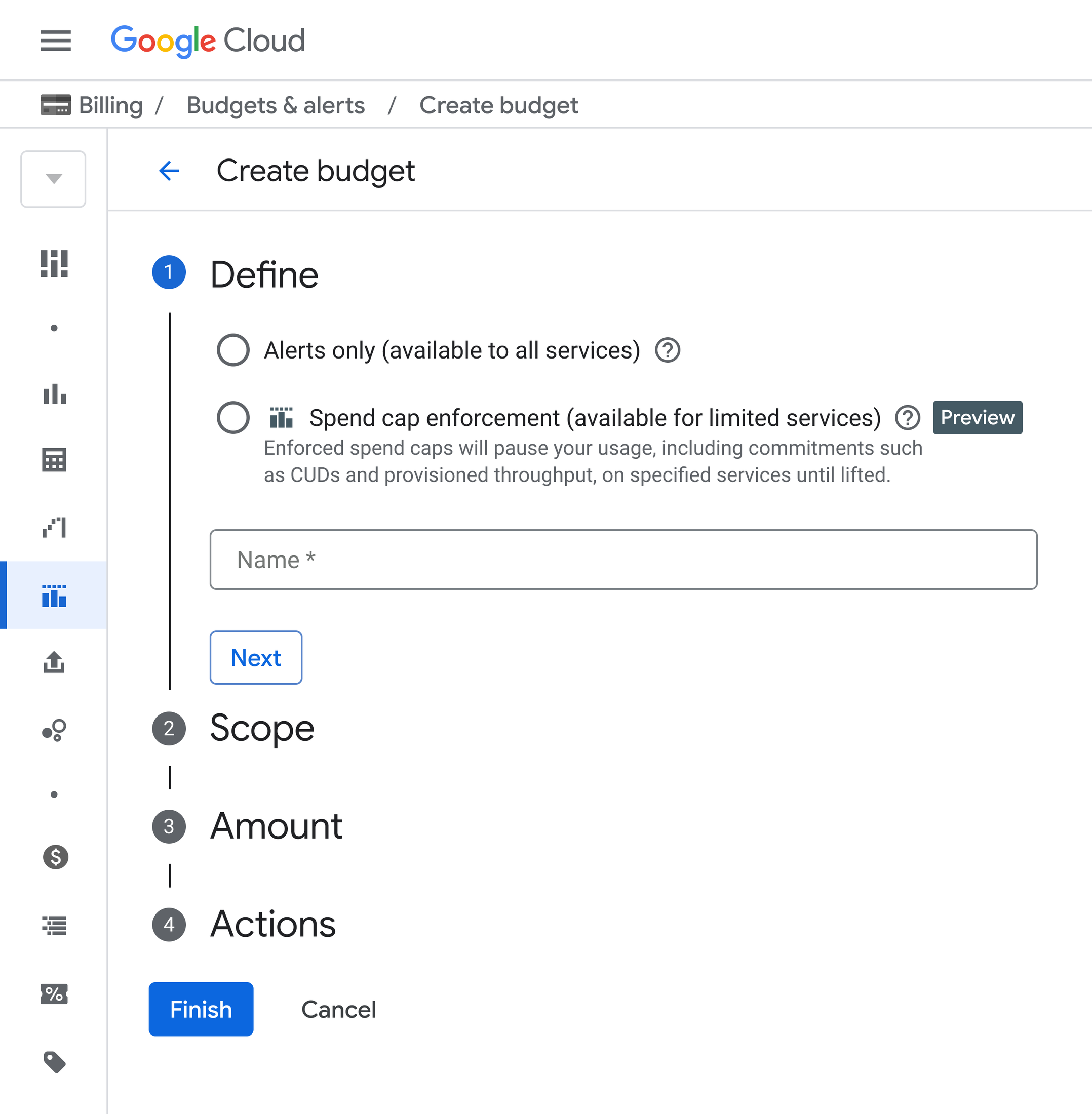
One important caveat: spend caps halt new on-demand charges, but fixed commitment fees such as Committed Use Discounts or Provisioned Throughput keep billing at their contractual rate. A cap protects you from runaway usage, not from a commitment you have already made.
Both features are in public preview, currently supporting Gemini API, Agent Platform, Cloud Run, and Cloud Run Functions. During preview, a spend cap applies to a single project and service on a fixed monthly timeframe.
Where to start: apply caps to your development and test environments first. That is where experimentation happens, where runaway jobs originate, and where a pause carries the least production risk.
Strategy 2: Revisit your commitments under the new spend-based CUD model
Committed Use Discounts remain one of the highest-leverage tools available for reducing Google Cloud costs. The problem was never the discount. It was that almost nobody could explain their own savings without a spreadsheet.
Google has now moved spend-based CUDs from a credit-based system to a direct discounted price model, and the change is fully rolled out to all customers.
The math got dramatically simpler
Under the old model, working out what you actually saved required juggling three numbers: the full on-demand cost, the commitment fee, and an offsetting credit. You committed to an hourly on-demand amount, then reverse-engineered the net.
Under the new model, you commit directly to the discounted spend amount and your usage is billed at that rate. Your net cost appears on the dashboard as a single figure. Savings is just the gap between the on-demand price and what you actually paid.
This sounds like a cosmetic change. It is not. Finance teams that could never confidently report cloud savings to leadership can now do it from a single view, which tends to unlock the budget conversation that was previously stuck.
You can now audit your commitments properly
The unified CUD Analysis tool gives you coverage and utilization visibility with hourly granularity for up to 30 days. That granularity matters more than it sounds. Daily averages routinely conceal underutilization that only shows up during specific hours, which means teams have been quietly overcommitting without any signal.
If you want to work with the raw data, there is a spend-based CUD metadata export you can join against your Billing BigQuery Export datasets for programmatic analysis, or a straightforward CSV export from the CUD Analysis view if BigQuery is more than you need.
Cost Reports now include a Savings Programs line that reflects true net savings rather than gross credit. If you are comparing figures from before and after the migration, include both usage SKUs and commitment fee SKUs so you capture the full picture.
Sizing the commitment is less of a guess
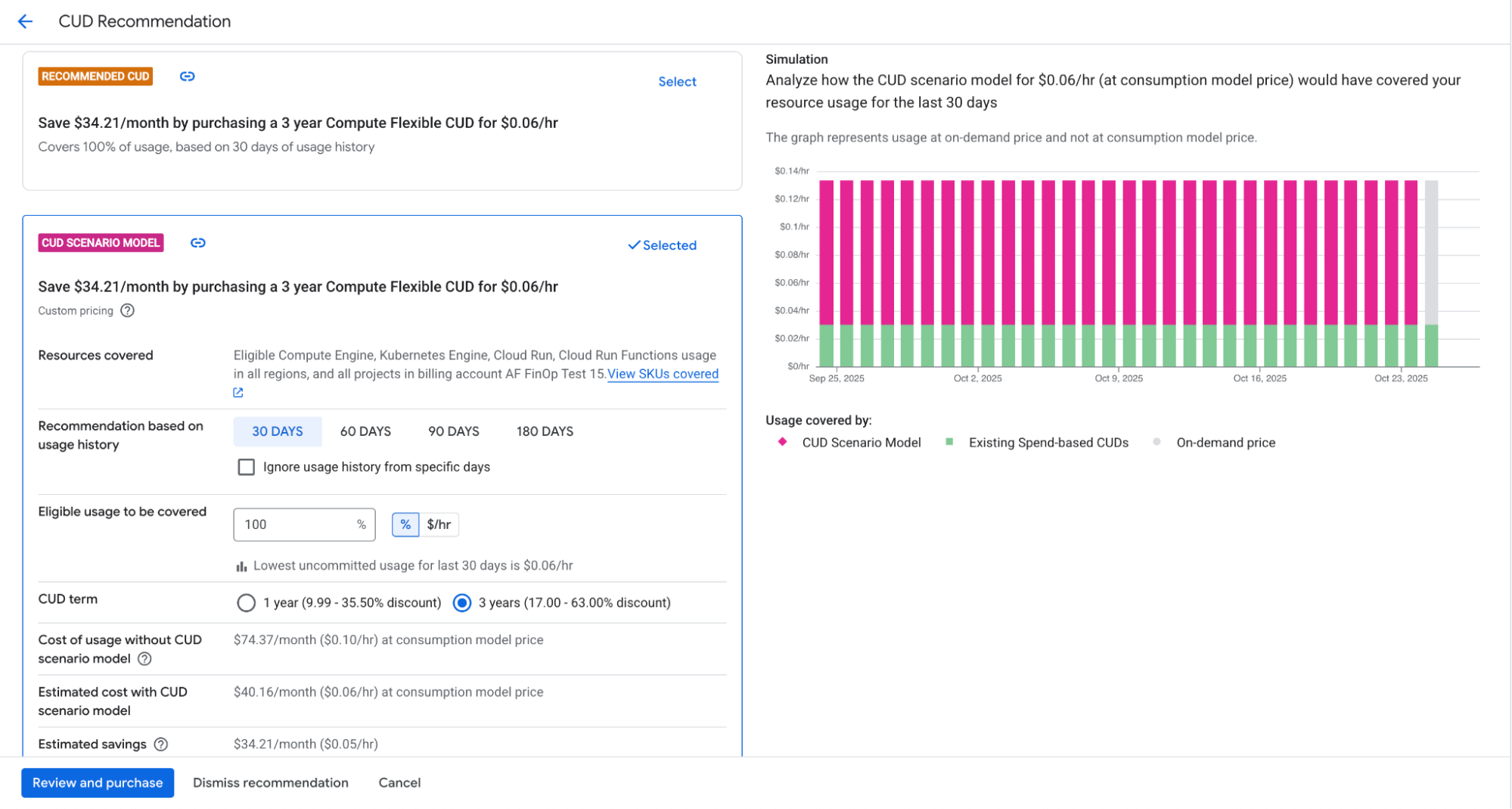
CUD recommendations now factor in data from GKE, Cloud Run, Cloud Run Functions, and Compute Engine, which makes Compute Flexible CUD suggestions considerably more accurate for teams running mixed workloads.
Scenario modeling is the part worth exploring. You can adjust coverage thresholds, exclude dates with irregular usage that would otherwise skew the recommendation, and extend the lookback window up to 180 days. That lets you size a commitment against your actual risk tolerance rather than accepting a default.
Coverage has also expanded to newer SKUs including Cloud Run and H3 and M-series VMs, and a longstanding reporting limitation affecting customers combining Flex CUDs with GKE or Cloud Run CUDs has been resolved.
Where to start: if you purchased commitments before this migration, run a CUD Analysis comparison across the migration date. Confirm your savings held, then re-examine whether your coverage levels still match how your workloads have actually evolved.
Strategy 3: Automate financial governance instead of chasing it
The two strategies above address cost after it has been incurred. This one addresses the conditions that let waste accumulate in the first place.
Every organization running Google Cloud at any real scale hits the same wall: untagged resources nobody can attribute, storage buckets with no lifecycle policy, BigQuery tables retaining data forever, environments that drift from whatever standard was agreed on eighteen months ago. Manual reviews take weeks. By the time an audit finishes, the environment has changed.
Workload Manager lets you codify those policies and enforce them continuously.
What you can automate
Workload Manager validates your workloads against best practices using rules defined in Open Policy Agent (OPA) Rego. You can choose from hundreds of predefined rules authored by Google Cloud covering FinOps, reliability, security, and operations, or write your own.
Cost policies worth automating early:
- Requiring labels or tags on specific resource types so cost allocation and showback actually work
- Enforcing lifecycle management or Autoclass configuration on every Cloud Storage bucket
- Setting appropriate data retention on storage such as BigQuery tables
- Disabling simultaneous multi-threading where it reduces licensing costs, for example on SQL Server

Google also recently cut the cost of running Workload Manager by up to 95% for certain scenarios and added a free tier for smaller tests, which removes most of the reason to delay trying it.
How the workflow fits together
Setup follows four steps. You create an evaluation and select your rules, whether predefined, custom, or both. You define scope, which can be your entire organization, specific folders, individual projects, or filtered by resource label or name. You set a schedule ranging from hourly to monthly, configure notifications through email, Slack, or PagerDuty, and export results to a BigQuery dataset. Then the evaluation runs on schedule or on demand, storing a historical record of your compliance posture.
For reporting, connect the BigQuery results to Looker Studio. There is a Google Cloud Workload Manager template in the Looker Studio template gallery that you can point at your own dataset and customize.
The outcome is a shift in how cost governance operates. Instead of one person chasing teams for compliance, policy violations surface automatically to the people who can fix them, with a historical trend line showing whether things are improving.
Where to start: pick a single policy with clear business value, usually mandatory labeling on your highest-spend resource type, and scope it to one folder. Prove the loop works before expanding it organization-wide.

How these three strategies work together
Treated separately, each of these is a useful feature. Treated as a system, they cover the full cost lifecycle:
| Layer | Tool | What it does |
|---|---|---|
| Prevent | Workload Manager policies | Stops misconfiguration and untracked resources from accumulating |
| Detect | Early anomalies | Flags abnormal spend before it reaches the invoice |
| Enforce | Spend caps | Halts runaway usage automatically |
| Optimize | Spend-based CUDs | Reduces the rate you pay on committed baseline usage |
Most organizations we work with have one or two of these layers and assume they are covered. The gap is usually enforcement, which is exactly the layer that AI workloads punish hardest.
Getting started
If you are running meaningful workloads on Google Cloud, here is a reasonable sequence:
- Open the Anomalies section of your Billing console and review what early anomaly detection surfaces on your AI services.
- Apply spend caps to your development and test projects for the supported services.
- Run a CUD Analysis comparison across your migration date and validate that your savings carried over.
- Use CUD scenario modeling with a 180-day lookback to check whether your current coverage still fits your usage.
- Automate one high-value cost policy in Workload Manager, scoped narrowly, and expand from there.
The tooling is genuinely better than it was a year ago. The harder part is usually not configuration, it is deciding what your policies should be and what level of commitment risk your business can carry.
That is where a partner earns their place. As a Google Cloud Premier Partner, Premier Cloud works with organizations across North America to build cost governance that holds up under real workloads. If your cloud bill is growing faster than your usage, or if AI experimentation is outpacing your ability to track what it costs, we can help you get ahead of it.
Frequently asked questions
What is Google Cloud cost optimization? Google Cloud cost optimization is the practice of reducing cloud spend without compromising performance or availability. It combines visibility into where money is going, structural discounts such as Committed Use Discounts, right-sizing of resources, and governance policies that prevent waste from accumulating.
How do Google Cloud spend caps work? Spend caps let you set a monthly spending ceiling on a specific service within a specific project. When accumulated spend reaches your defined cap, Google Cloud automatically restricts further cost-incurring usage for that service. The action is non-destructive, alerts fire at 50%, 80%, and 100% of budget, and the cap can be lifted with one click from the Budgets UI.
What changed with spend-based Committed Use Discounts? Google Cloud moved spend-based CUDs from a credit-based system to a direct discounted price model. You now commit to a net discounted spend amount and your usage is billed at that rate, so your net cost is visible directly rather than requiring you to reconcile on-demand costs, commitment fees, and credits separately.
Can you set spending limits on the Gemini API? Yes. During the current public preview, spend caps support Gemini API, Agent Platform, Cloud Run, and Cloud Run Functions, applied to a single project and service on a fixed monthly timeframe.
How much can Committed Use Discounts save? Savings depend on your commitment term, coverage level, and workload profile. The CUD Analysis tool and scenario modeling in your Billing console give you a modeled figure based on your actual usage, with lookback windows configurable up to 180 days.
Sources
- Detect early and enforce firmly with Google Cloud’s enhanced cost controls for AI spend, Google Cloud Blog
- Simpler billing, clearer savings: A FinOps guide to updated spend-based CUDs, Google Cloud Blog
- Automating FinOps cost management policies using Workload Manager, Google Cloud Blog